

Getting a Korean Phone Number: Prepaid vs Contract
Your options for getting a Korean phone number as a foreigner. Prepaid SIM, contracts, eSIM, and WiFi eggs.
Your Options
| Option | Cost | Requirements | Best For |
|---|---|---|---|
| Prepaid SIM | ₩30,000–50,000/month | Passport only | Short stays (1-3 months) |
| Contract (MVNO) | ₩15,000–35,000/month | ARC + bank account | Long stays, cheapest |
| eSIM | ₩10,000–30,000/month | Compatible phone | Data only, no calls |
| WiFi Egg | ₩3,000–5,000/day | None | Tourists, very short stays |
Where to Buy
- Airport: Prepaid SIMs at Incheon arrivals (KT, SKT, LG U+)
- Convenience stores: Some CU and GS25 stores sell prepaid SIMs
- Carrier stores: Visit any KT, SKT, or LG U+ store with your ARC for contracts
- Online: eSIM providers like Airalo or Trifa
Why You Need a Korean Number
Many services in Korea require a Korean phone number: banking, delivery apps (배달의민족), housing contracts, and even some websites. Get one as soon as possible after arriving.
Best Budget Plans by Carrier
Korea has three major carriers and dozens of budget MVNOs (알뜰폰). Here's a detailed breakdown of the best options for foreigners in 2026:
Major Carriers (Big 3):
| Carrier | Cheapest Plan | Data | Calls | Foreigner Support |
|---|---|---|---|---|
| KT | ₩33,000/month | 5GB + unlimited throttled | Unlimited | Good (English hotline: 100) |
| SKT | ₩35,000/month | 5GB + unlimited throttled | Unlimited | Moderate (English: 114) |
| LG U+ | ₩33,000/month | 5GB + unlimited throttled | Unlimited | Limited English |
Budget MVNOs (알뜰폰) — Best Value for Foreigners:
| MVNO | Plan | Data | Calls | Requirements |
|---|---|---|---|---|
| 헬로모바일 (Hello Mobile) | ₩16,500/month | 4GB + 1Mbps unlimited | Unlimited | ARC + bank account |
| 리브모바일 (Liiv Mobile/KB) | ₩14,900/month | 3GB + 1Mbps unlimited | 100 min | ARC + KB bank account |
| 핀다이렉트 (Pincrux) | ₩9,900/month | 2GB | 50 min | ARC |
| KT M모바일 | ₩17,600/month | 5GB + 3Mbps unlimited | Unlimited | ARC + bank account |
Prepaid Options (No ARC Required):
| Provider | Cost | Data | Duration | Where to Buy |
|---|---|---|---|---|
| KT Tourist SIM | ₩35,000 | Unlimited (5GB high-speed) | 30 days | Incheon Airport, KT stores |
| SKT Prepaid | ₩33,000 | 5GB | 30 days | Airport, convenience stores |
| EG SIM | ₩30,000–55,000 | 1-10GB | 30 days | Airport, online (egsimcard.co.kr) |
Recommendation by situation:
- Just arrived, no ARC yet: Get a prepaid KT Tourist SIM at the airport (₩35,000/30 days). This gives you a working Korean number immediately.
- Got ARC, staying 6+ months: Switch to an MVNO like Hello Mobile (₩16,500/month). You'll save ₩200,000+ per year vs major carriers.
- Heavy data user (YouTube, Netflix): KT M모바일 5GB + unlimited throttled at ₩17,600 — the throttled speed (3Mbps) is enough for standard-quality streaming.
How to Set Up Your Phone for Korea
Your phone needs specific settings to work properly in Korea. Here's what to check and configure:
Before Arriving (At Home):
- Check carrier lock: If your phone is locked to a carrier from your home country, it won't accept Korean SIMs. Contact your carrier to unlock it before traveling. iPhones bought directly from Apple are usually unlocked.
- Check compatibility: Korean networks use LTE bands 1, 3, 5, 7, 8 and 5G band n78. Most international flagship phones (iPhone 12+, Samsung Galaxy S20+, Google Pixel 5+) support these bands.
- Download offline maps: Download Korea map data in Google Maps or Naver Map before arriving, in case you have no data initially at the airport.
After Inserting Korean SIM:
- Enable data roaming: Settings → Cellular/Mobile Data → Enable data. Even though it's a local SIM, some phones need "roaming" toggled on initially.
- APN settings: Usually auto-configured, but if data doesn't work:
- KT: APN = "lte.ktfwing.com"
- SKT: APN = "lte.sktelecom.com"
- LG U+: APN = "internet.lguplus.co.kr"
- VoLTE activation: Enable VoLTE in phone settings for HD calls. Without it, call quality may be poor.
- Restart your phone after inserting the SIM and configuring settings.
Essential Phone Settings for Korea:
- Region: Change phone region to South Korea (Settings → General → Language & Region). This ensures Korean apps work properly.
- App Store: You may need to create a Korean Apple ID or switch Google Play region to download certain Korean-only apps.
- NFC: Enable NFC for mobile payments (Samsung Pay, Apple Pay with T-money).
- Emergency alerts: Korea sends earthquake and emergency alerts to all phones. You may want to keep this enabled but adjust the volume.
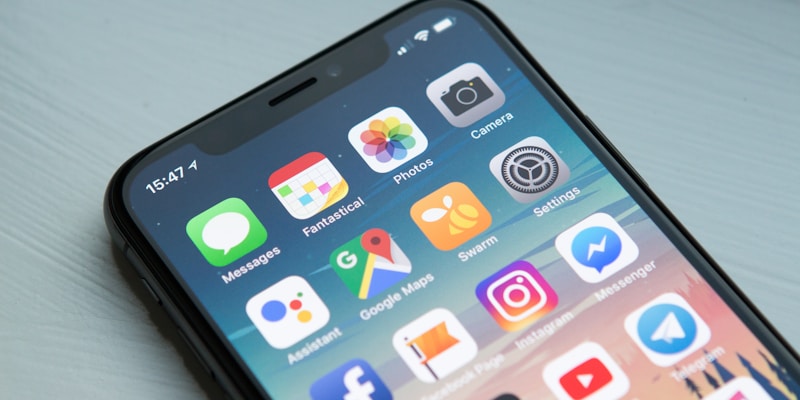
Essential Korean Apps to Download
These apps will make your daily life in Korea dramatically easier. Download them as soon as you have a working phone number:
Must-Have (Day 1):
| App | Purpose | English Support |
|---|---|---|
| KakaoTalk (카카오톡) | Messaging — literally everyone uses it | Full English |
| Naver Map (네이버 지도) | Navigation — much better than Google Maps in Korea | Full English |
| Papago (파파고) | Translation — camera mode for signs/menus | Full English |
| T-money (티머니) | Transit card balance/top-up | Partial |
Daily Life (First Week):
| App | Purpose | English Support |
|---|---|---|
| Coupang (쿠팡) | Shopping/delivery — Korea's Amazon | Full English |
| Coupang Eats | Food delivery | Full English |
| 배달의민족 (Baedal Minjok) | Food delivery (more restaurants) | Partial |
| Kakao Map (카카오맵) | Alternative navigation + bus times | Full English |
| 당근마켓 (Karrot/Danggeun) | Buy/sell secondhand items locally | Korean only |
Banking & Money (After Account Opening):
| App | Purpose | Notes |
|---|---|---|
| Your bank app | Banking, transfers | See banking section above |
| Toss (토스) | All-in-one finance | Link existing account |
| Kakao Pay | Mobile payments | Inside KakaoTalk |
Transportation:
| App | Purpose | Notes |
|---|---|---|
| Kakao T (카카오 T) | Taxi, parking, bike rental | English available |
| Seoul Metro | Subway map and schedules | Full English |
| TMAP | Driving navigation | Korean only |
Pro Tips:
- KakaoTalk is not optional — it's how landlords, shops, delivery drivers, and friends will contact you. Set it up immediately.
- Naver Map is significantly more accurate than Google Maps for Korea. Bus stop locations, walking paths, and business hours are more reliable.
- Papago's camera translation feature is a lifesaver for reading menus, signs, and contracts.
eSIM vs Physical SIM Pros & Cons
With modern phones supporting eSIM, you have more options than ever. Here's a detailed comparison to help you choose:
Physical SIM Card:
| Pros | Cons |
|---|---|
| Works on any phone | Need to visit a store or airport counter |
| Gets a real Korean phone number | Can be lost or damaged |
| Full voice calls + SMS | Takes a SIM slot (problem if phone is single-SIM) |
| Required for banking/government services | Activation may take 30+ minutes at the store |
| Works with all Korean services | Contract cancellation can be complex |
eSIM:
| Pros | Cons |
|---|---|
| Activate instantly online before arriving | NOT all Korean services accept eSIM numbers |
| Keep your home SIM in the physical slot | Many plans are data-only (no Korean phone number) |
| Easy to switch between plans | Cannot be used for Korean banking verification |
| No physical card to lose | Phone must support eSIM (iPhone XS+, Pixel 3+, Samsung S20+) |
| Good temporary solution for first days | Limited MVNO options for eSIM in Korea |
Best eSIM Providers for Korea:
| Provider | Price | Data | Phone Number | Duration |
|---|---|---|---|---|
| Airalo | $5–25 | 1-20GB | No | 7-30 days |
| Trifa | $8–30 | 1-10GB | No | 1-30 days |
| aloSIM | $5–20 | 1-10GB | No | 7-30 days |
| KT eSIM | ₩35,000+ | 5GB+ unlimited throttled | Yes (Korean number) | 30 days |
Recommended Strategy:
- Before flying: Buy an Airalo or Trifa eSIM ($10-15 for 5GB/7 days). Activate it when you land — instant data, no queue at the airport.
- First week: Use eSIM data to navigate, communicate on WhatsApp/Kakao, and settle in.
- After getting ARC: Get a physical SIM with a real Korean number from an MVNO (₩15,000-20,000/month). This becomes your permanent number for banking, services, etc.
- Keep eSIM as backup: Many phones support dual SIM (physical + eSIM). Keep your eSIM plan as backup data or for your home country number forwarding.
What to Do If Your Phone Doesn't Work
Phone not connecting after inserting a Korean SIM? Here's a systematic troubleshooting guide:
Problem: "No Service" or "No Signal"
- Check airplane mode: Toggle it on and off. This forces the phone to search for networks again.
- Restart the phone: Power off completely, wait 10 seconds, power on.
- Check SIM insertion: Remove the SIM, check for dust or damage, reinsert firmly.
- Network selection: Go to Settings → Cellular → Network Selection → Set to "Automatic." If that doesn't work, try manually selecting KT, SKT, or LG U+ depending on your SIM carrier.
- Check carrier lock: If you see "SIM Not Supported" or "Invalid SIM," your phone is carrier-locked. Contact your home carrier for an unlock code (usually takes 24-48 hours remotely).
Problem: "Data doesn't work but calls do"
- Enable mobile data: Settings → Cellular → turn on Mobile Data
- Check APN settings: Settings → Cellular → Cellular Data Options → APN. Enter the correct APN for your carrier (see previous section).
- Disable VPN: Any active VPN can block Korean data connections initially.
- Reset network settings: Settings → General → Reset → Reset Network Settings (this erases saved WiFi passwords, so note them first).
Problem: "Can't make or receive calls"
- Check if your plan includes voice calls (some eSIM/prepaid plans are data-only).
- Enable VoLTE: Settings → Cellular → Voice & Data → select "LTE, VoLTE On"
- Try enabling WiFi Calling if available: Settings → Phone → WiFi Calling
Problem: "Korean apps won't install"
- iPhone: Some Korean apps require a Korean Apple ID. Create a new Apple ID with Korea as the region (use your Korean address). You can switch between Apple IDs in the App Store.
- Android: Open Google Play Store → tap your profile → Settings → General → Account preferences → Country → select Korea. May take 24-48 hours to switch.
Problem: "Phone overheating / battery draining"
- Korean 5G signals are very strong. If your phone is constantly searching for 5G but poorly supports it, switch to LTE only: Settings → Cellular → Voice & Data → LTE.
- Disable background app refresh for apps you don't use.
Where to Get Help:
- KT Customer Service (English): Call 100 from a KT phone, or 02-2190-1180 from any phone
- SKT Customer Service: Call 114 (limited English) or visit an SKT store
- Apple Store Garosugil: 서울특별시 강남구 가로수길 35 — for iPhone hardware issues
- Samsung Service Center: Multiple locations — search "삼성 서비스센터" on Naver Map